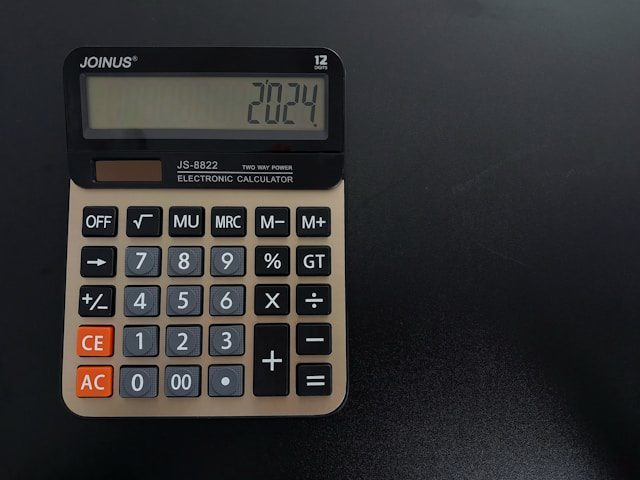
You have probably used a calculator thousands of times for simple addition and subtraction. But the M+, M-, MRC, and % keys sitting on your basic calculator have capabilities most people never discover. These hidden functions can cut your calculation time in half — especially when you are splitting bills, calculating discounts, or running the same operation repeatedly. Here is exactly what each key does, with real examples you can try right now on the Basic Calculator.
The Percent Key (%): Not Just for Tipping
Most people use the percent key for one thing: calculating a tip. But the % key actually performs four different operations depending on what you type before it:
| Operation | What You Type | What It Calculates | Real Example |
|---|---|---|---|
| Percentage of a number | 200 × 15 % | 15% of 200 = 30 | 15% tip on a $200 dinner |
| Add a percentage | 200 + 15 % | 200 + 15% = 230 | $200 item + 15% tax |
| Subtract a percentage | 200 − 15 % | 200 − 15% = 170 | $200 item with 15% discount |
| Percentage ratio | 30 ÷ 200 % | 30 is 15% of 200 | What % of budget did you spend? |
For a quick discount calculation: you see a $47.99 jacket marked 30% off. Type 47.99 − 30 % and the calculator shows $33.59 — your final price. No need to calculate the discount separately and then subtract. Try this and other real-world calculations on the Percentage Calculator for more complex multi-step percentage work.
Memory Functions: M+, M-, MRC, and MC
The memory keys let you store a number and recall it later — invaluable when you are adding up a long list of expenses or running the same subtotal in multiple calculations. Here is how they work:
- M+ (Memory Plus): Adds the current display number to memory. If memory holds 50 and you type 25 then press M+, memory now holds 75.
- M- (Memory Minus): Subtracts the current display number from memory. Memory holds 75, type 10 then M- → memory now holds 65.
- MRC (Memory Recall/Clear): Press once to recall the stored number. Press twice to clear memory. On some calculators, MR and MC are separate buttons.
- MC (Memory Clear): Resets memory to zero. Always press MC before starting a new calculation to avoid leftover values.
Practical example — adding up a grocery receipt: You have five items: $3.49, $2.99, $5.79, $1.89, and $4.50. Press MC to clear memory. Then type 3.49 M+, 2.99 M+, 5.79 M+, 1.89 M+, 4.50 M+. Press MRC → $18.66. Now add 8.25% sales tax: type × 8.25 % + = → $20.20 total. Three keystrokes instead of re-entering the entire subtotal. For a more detailed breakdown, use the Sales Tax Calculator.
The Constant Feature: Auto-Repeat Operations
Most basic calculators have a hidden constant feature: if you press = after an operation, the calculator repeats the last operation using the last operand. This is useful for repetitive math like unit conversions or scaling numbers:
- Converting kilometers to miles: Type 1.609 (the conversion factor), then press × 5 = → 8.045 miles. Now type 10 = → 16.09 miles. Type 21 = → 33.79 miles (half marathon). The calculator remembers × 1.609.
- Adding the same shipping fee: Type 5.99 + 12.99 = → 18.98. Then 24.99 = → 30.98. Then 8.50 = → 14.49. It keeps adding $5.99 to each new number.
Order of Operations: What Your Calculator Actually Does
Here is a critical point most people miss: basic calculators use chain logic, not algebraic logic. If you type 2 + 3 × 4 =, a basic calculator gives 20 (it calculates left to right: 2+3=5, then 5×4=20). A scientific calculator following PEMDAS would give 14 (3×4=12, then 2+12=14). This difference causes real errors — a 2019 survey by the National Numeracy organization found that 43% of adults made at least one order-of-operations error when using a basic calculator for multi-step problems. When precision matters, switch to the Scientific Calculator which follows standard algebraic rules.
Frequently Asked Questions
Q: Why does my calculator show a tiny “M” on the screen?
That “M” indicator means something is stored in memory. If you see unexpected results, you probably have a leftover value from a previous calculation. Press MC (or MRC twice) to clear it.
Q: What does the CE button do vs the C button?
C (Clear) resets the entire calculation. CE (Clear Entry) only clears the last number you typed — it keeps the current operation. If you type 25 + 43 but meant 25 + 34, press CE, type 34, then = → 59. Much faster than starting over.
Q: Can I use the memory function across different calculations?
Yes — memory persists until you clear it or turn off the calculator. This is useful for keeping a running total across multiple separate calculations. Just remember to press MC when you are done.
Try these functions yourself on the Basic Calculator — once you build the muscle memory, you will wonder how you ever did math without them.
Related Articles:
 Fuel Economy Calculator: How to Calculate MPG and Save Money on Gas
Physics Calculator: How to Calculate Force, Velocity, Acceleration, and More for Real-World Problems
Pomodoro Timer: How to Use the Pomodoro Technique to Boost Focus and Productivity
Algebra Calculator: How to Solve Linear and Quadratic Equations Step by Step
Fuel Economy Calculator: How to Calculate MPG and Save Money on Gas
Physics Calculator: How to Calculate Force, Velocity, Acceleration, and More for Real-World Problems
Pomodoro Timer: How to Use the Pomodoro Technique to Boost Focus and Productivity
Algebra Calculator: How to Solve Linear and Quadratic Equations Step by Step
Leave a Reply
You must be logged in to post a comment.